Essential Cloud Security Tips for Businesses
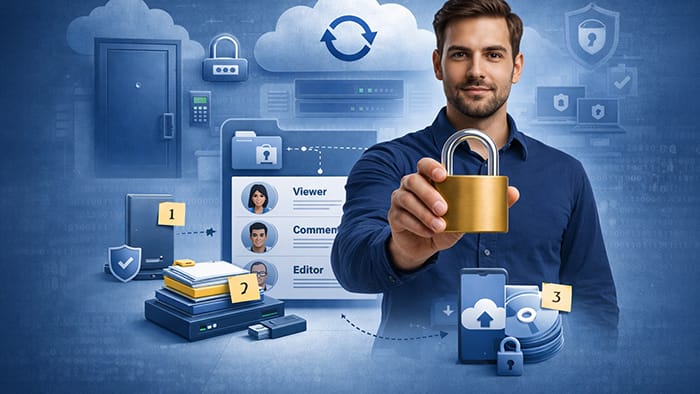

Picture the moment you open your laptop to find your most critical client files have vanished. While services like Google Drive or iCloud offer incredible convenience, industry data reveals that user error causes significantly more data loss than any technical failure on the provider's end. Relying solely on a big tech company to save you is a common mistake that can cost a small business its reputation.
Security is a partnership, not a product you buy once and forget. By applying essential cloud security protocols, you can shift from passively hoping you are safe to actively securing your livelihood. Here is how to prevent data breaches by installing the necessary digital deadbolts.
The Landlord vs. The Tenant: Why the Shared Responsibility Model Matters for You
When you store photos or documents online, think of the cloud as a leased suite in a high-security office building rather than a magic vault. The provider acts as the landlord, ensuring the building doesn't burn down and the walls remain sturdy. However, they do not monitor what happens inside your specific unit or who you invite in for dinner. This shared responsibility model means that while the provider protects the "building," you are solely responsible for locking your own front door.

Understanding this division of labor is the most effective way to prevent leaks. If you leave your digital window open, the strongest building security in the world cannot protect you. Generally, the safety duties are split like this:
- The Provider’s Job (Security of the Cloud): Maintaining physical servers, preventing power outages, and guarding the data center facilities.
- Your Job (Security in the Cloud): Setting strong passwords, managing who you share folders with, and keeping your recovery email updated.
Most personal data breaches happen because of a "lost key" rather than a broken building. You cannot control the server racks in a remote data center, but you have total control over login settings. Once you accept that you hold the only key to your digital vault, the next logical step is ensuring that key is impossible to copy.
Double-Locking the Digital Front Door: Essential Multi-Factor Authentication (MFA) Steps
Relying on a single password is like locking your house with a simple latch that opens with a common screwdriver. Hackers currently use automated tools to guess millions of combinations in seconds, meaning that "Fluffy123" or your birthday won't stop a determined intruder. Since you are the tenant responsible for your digital unit, you need a security measure that works even if a thief manages to copy your primary key.
Multi-factor authentication (MFA) acts as that necessary digital deadbolt. By requiring a second form of identification—usually a code sent to your phone—you ensure that knowing your password isn't enough to break in. Microsoft reports that multi-factor authentication blocks 99.9% of automated account hacks because the attacker can't replicate the physical phone in your hand.
While receiving a text message code is better than nothing, switching to a dedicated app like Google Authenticator offers significantly stronger protection against criminals who might try to hijack your phone number. These apps generate fresh codes every 30 seconds directly on your device, creating a constantly changing lock that is nearly impossible for remote hackers to pick.
Implementing these tips turns your account into a fortress, but a secure door is only effective if you know exactly who has a key copy. Once you have locked down your own entrance, the next challenge is managing the friends, family, or colleagues you invite inside without accidentally leaving the door wide open.
Who Holds the Keys? How to Control Access Without Creating Chaos
Imagine running a restaurant where every customer is given a key to the cash register and the walk-in freezer. That sounds chaotic, yet many cloud users do the digital equivalent by granting "Editor" or "Owner" status to anyone who needs to see a single document. In the professional world, this is identity and access management, but for you, it simply means giving people only the permissions they truly need—and nothing more. If an intern only needs to read a report, giving them the ability to delete it invites disaster, like the common scenario where a temporary contractor accidentally drags a vital shared folder into their trash bin, wiping it for everyone.
Securing your collaborative space requires strict discipline about who holds which keys. To maintain secure cloud storage, you should default to the lowest level of access possible rather than the highest. Before hitting "Share," pause and select the right role from this breakdown:
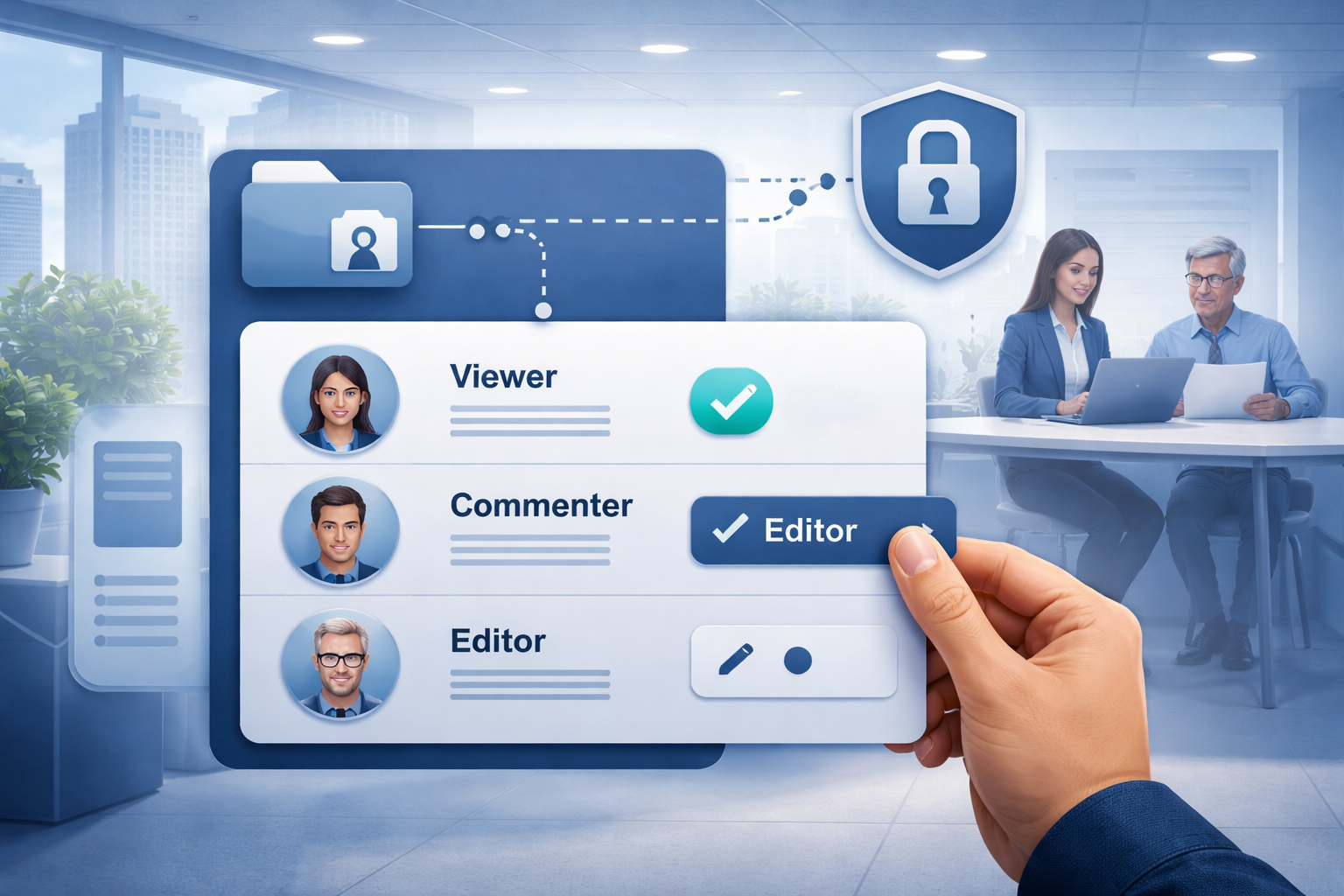
- Viewer: Perfect for broad distribution; they can read but can't touch or download.
- Commenter: Ideal for feedback; they can leave digital sticky notes but can't change the actual text.
- Editor: Reserved for trusted co-authors; they have full power to change, move, or delete content.
- Owner: Never share this unless handing over the project entirely; it grants total administrative control.
Access lists tend to grow stale over time, accumulating "ghost" users who no longer need entry. Set a calendar reminder to review your shared folders every few months, removing ex-colleagues or old contractors to keep your digital home tight. Once you have locked the doors and limited the keys, the final layer of protection involves scrambling the data itself so that even if a thief steals a file, they can't actually read it.
The Secret Language of Data: How Encryption Keeps Your Secrets Safe
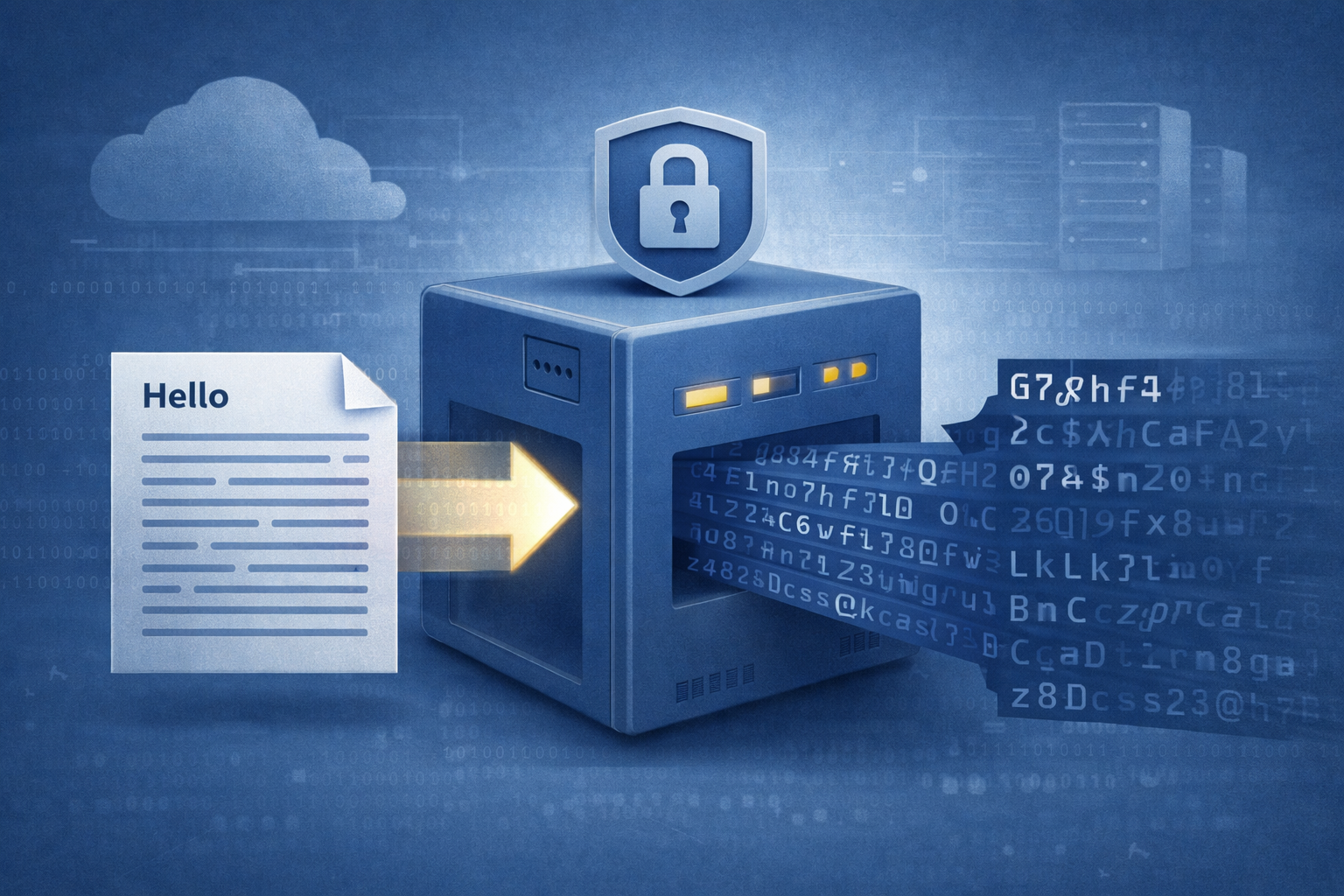
Even if a hacker manages to steal your digital keys, encryption ensures they walk away empty-handed. Think of this process as a translation machine that turns your private photos and bank statements into a jumbled mess of random characters. Unless the thief has the specific "decoder ring"—usually your password—that stolen data looks like gibberish. Encryption protects your information by making it readable only to you, acting as a final fail-safe when other defenses crumble.
Your information needs this protection during two specific moments: when it travels and when it sits still. Data "in transit" is like sending a letter in a clear glass envelope; encryption wraps that letter in an armored box while it zips from your phone to the cloud server. Once it arrives, it becomes data "at rest," locked inside a digital vault safe from physical theft or prying eyes at the data center.
For maximum privacy, look for "end-to-end encryption" in your app settings, which ensures that not even the cloud company can peek inside your armored box. This is one of the most vital security tips because it guarantees that you hold the only key. However, locking the data fails if your own device is already compromised, which brings us to the importance of verifying every connection.
Trust No One (Even Your Own Laptop): Why Zero Trust is the New Standard
Traditional office security worked like a castle moat; once you crossed the drawbridge with a password, you had free reign of the kingdom. However, this approach fails completely in a world where work happens at coffee shops and kitchen tables. If a hacker steals credentials to cross that initial barrier, they shouldn't automatically possess the keys to the entire vault.
Modern safety relies on zero trust architecture. Instead of a single checkpoint at the front gate, imagine a security guard stationed at every single door inside the building. Even after you log in, the system verifies your identity again before letting you open a sensitive file or access payroll. This ensures that even if an intruder gets inside, they are trapped in the lobby rather than roaming freely.
This scrutiny extends beyond your identity to the actual device you are holding. Effective endpoint security runs a health check to ensure your laptop has the latest updates before granting access. If your computer is compromised, the cloud keeps the door locked to prevent the infection from spreading. With these automated guards in place, the biggest remaining risk is often a simple setup error.
Plugging the Holes: How to Spot and Fix Common Setup Mistakes
Hollywood movies make hacking look like a high-speed typing contest, but reality is far less dramatic. Most digital break-ins happen simply because someone left a 'digital window' unlocked—a common configuration error. Just as you might accidentally leave the stove on before leaving the house, it is surprisingly easy to leave a folder marked "Public" when you meant "Private," essentially inviting strangers to browse your personal files without a password.
Trying to check every setting manually is impossible, so relying on best practices means turning on automated safeguards. Think of this as installing a smart alarm system that texts you immediately if a door opens unexpectedly. Most services (like Google or Microsoft) have a "Security Checkup" dashboard that scans for these risks automatically, alerting you before a mistake becomes a disaster.
To lock down your account today, run through this quick audit:
- Review Sharing: Ensure sensitive folders aren't set to "Public" or "Anyone with the link."
- Update Defaults: Change any pre-set passwords immediately.
- Enable History: Turn on activity logging so you can see if anyone else has logged in.
- Verify 2FA: Confirm your Multi-Factor Authentication is active for all users.
Once the main doors are locked, the next challenge is ensuring no one is sneaking in through the back window using unauthorized apps.
Unseen Hazards: How Shadow IT Puts Your Business at Risk
Imagine an employee struggling to email a large presentation, so they upload it to their personal Google Drive to share it quickly. This common workaround is Shadow IT: the use of unapproved software by staff to bypass strict or clunky corporate rules. It is rarely done out of malice, but rather convenience, much like a construction worker bringing their own power drill from home because the company tools are broken or locked away.
While these "free" tools seem harmless, they create invisible pockets of data that your IT department cannot see or protect. If that employee leaves the company tomorrow, your sensitive client lists or financial records leave with them in their personal account, completely out of your control. This lack of oversight makes mitigating insider threats incredibly difficult, as you cannot lock a door if you do not know the room exists.
Solving this problem doesn't mean banning every app; it means providing authorized tools that are just as easy to use as the consumer versions. By creating an environment where the secure option is also the most convenient option, you remove the temptation to go "rogue." However, even when everyone uses the right tools, systems can still fail, which is why you need a comprehensive plan for the worst-case scenario.
The Ultimate Safety Net: Why Backup and Disaster Recovery Are Your Best Friends
Many people assume that once a file is in the cloud, it is invincible, but synchronization is not the same as a backup. If you accidentally delete a photo on your phone, iCloud or Google Photos usually deletes it from the server instantly, effectively mirroring your mistake across every device you own. Think of backup strategies like a digital spare tire for your life; just because you bought a brand-new car (the cloud) doesn't mean you won't eventually get a flat tire.
To truly protect your digital memories and work documents, security experts recommend the "3-2-1 Rule." This simple formula suggests keeping three total copies of your data, stored on two different types of media (like your laptop and an external hard drive), with one of those copies kept offsite in a separate cloud location. This ensures that even if your house floods or your laptop is stolen, a safe version of your digital life exists elsewhere, ready to be restored in minutes rather than lost forever.
Having a safety net is useless if it has holes, which is why testing your recovery plan is just as important as setting it up. You don't want to wait for a crisis to discover your backup hard drive is corrupted or your cloud account is locked. This proactive approach highlights the benefits of regular audits, where you simply pretend a disaster has happened and try to restore a single file to see if it actually works.
Recovering from a data disaster is a huge relief, but preventing the mess in the first place requires sticking to a few golden rules. Once your safety net is in place, the next logical step involves keeping your digital house clean and following standards that keep trouble away entirely.
Staying Clean and Compliant: A Simple Checklist for Security Standards
Just like restaurants display health inspection grades to prove their kitchen is clean, digital services must follow strict laws to handle your private information. This concept, known as compliance, ensures that the apps storing your tax returns or medical history aren't cutting corners on safety. Even if you are just securing a hybrid environment—like mixing a personal hard drive backup with Google Drive—knowing these "rules of the road" helps you avoid sketchy services that leave your data vulnerable to leaks.
You don’t need a law degree to verify that a provider is trustworthy; you simply need to look for specific "badges of honor" on their website. Before uploading sensitive files, run through this quick compliance checklist to see if they make the grade:
- SOC2: Do independent auditors verify their security locks regularly?
- GDPR: Does the service give you total control to permanently delete your data if you leave?
- HIPAA: Is the platform legally approved to store medical information?
With your digital house up to code, you are ready to put everything together in a simple routine.
Your 30-Day Cloud Security Action Plan: Peace of Mind in a Digital World
Taking control of your digital life doesn't require a computer science degree. You have moved from viewing the cloud as a mysterious fog to seeing it as a digital vault where you hold the keys. By recognizing that providers protect the infrastructure while you manage the access, you have already taken the most important step toward protecting your photos, finances, and personal history.
To implement these protocols effectively, adopt a steady four-week pace rather than rushing. Start by enabling multi-factor authentication on critical accounts, then spend the following week reviewing who has access to your shared folders. Use the third week to automate your backups, and finish the month by sharing these practices with your family or team so everyone stays safe.
Securing your online presence is not about building an impenetrable fortress overnight, but about consistently locking your digital deadbolts. These small, manageable adjustments accumulate into massive protection against potential threats. The ultimate reward isn't just safer data, but the peace of mind that comes from knowing your digital home is secure and fully under your control.